How to Change Your BoldGrid Site Background
In This Tutorial:
Using BoldGrid , you are able to use the Customizer to change the background image, pattern, and color. The following article will take you through the basic steps for changing your website's background.
Changing Your Background Image
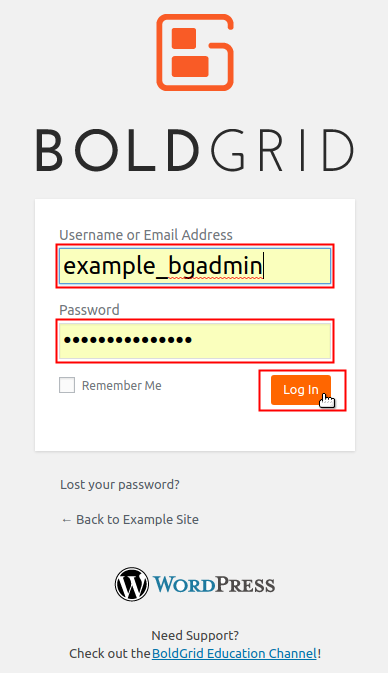
-
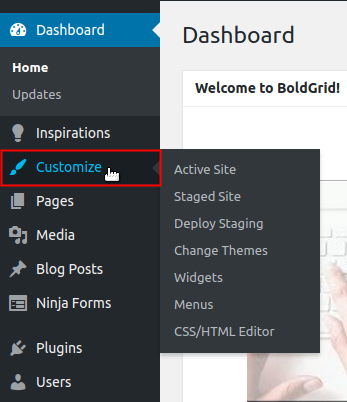
Click on Customize from the menu on the left.
-
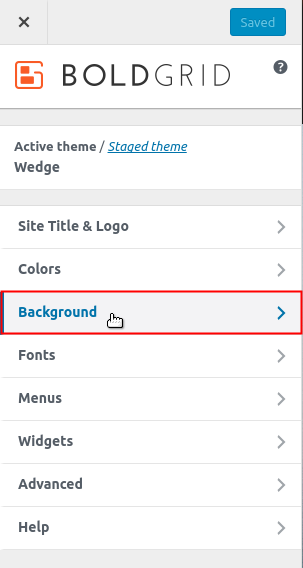
Click on the Background option.
-
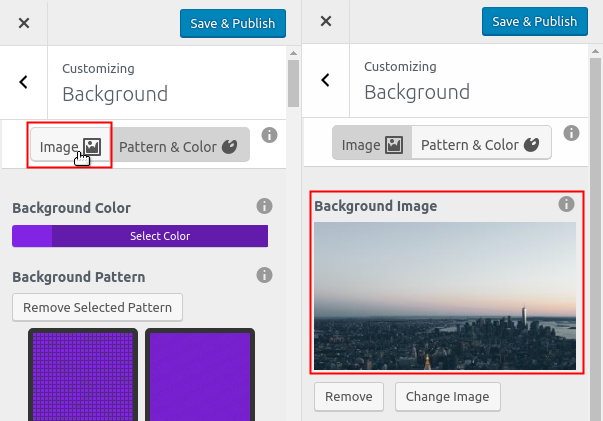
At the top you will see the option to select either a background Image or Pattern & Color. If the highlighted button is Pattern & Color, click on Image, to toggle the setting. Otherwise you should see a thumbnail of the current background image.
 NOTE: If you installed a Staging Site, be sure to click the Active Theme or Staged Theme link for the site you want to modify. When making changes to the background, the link selected will be the version of the site that your changes will be applied to.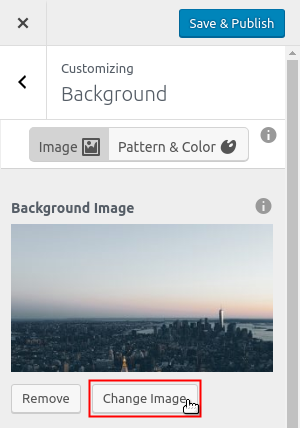
Click the Change Image button.
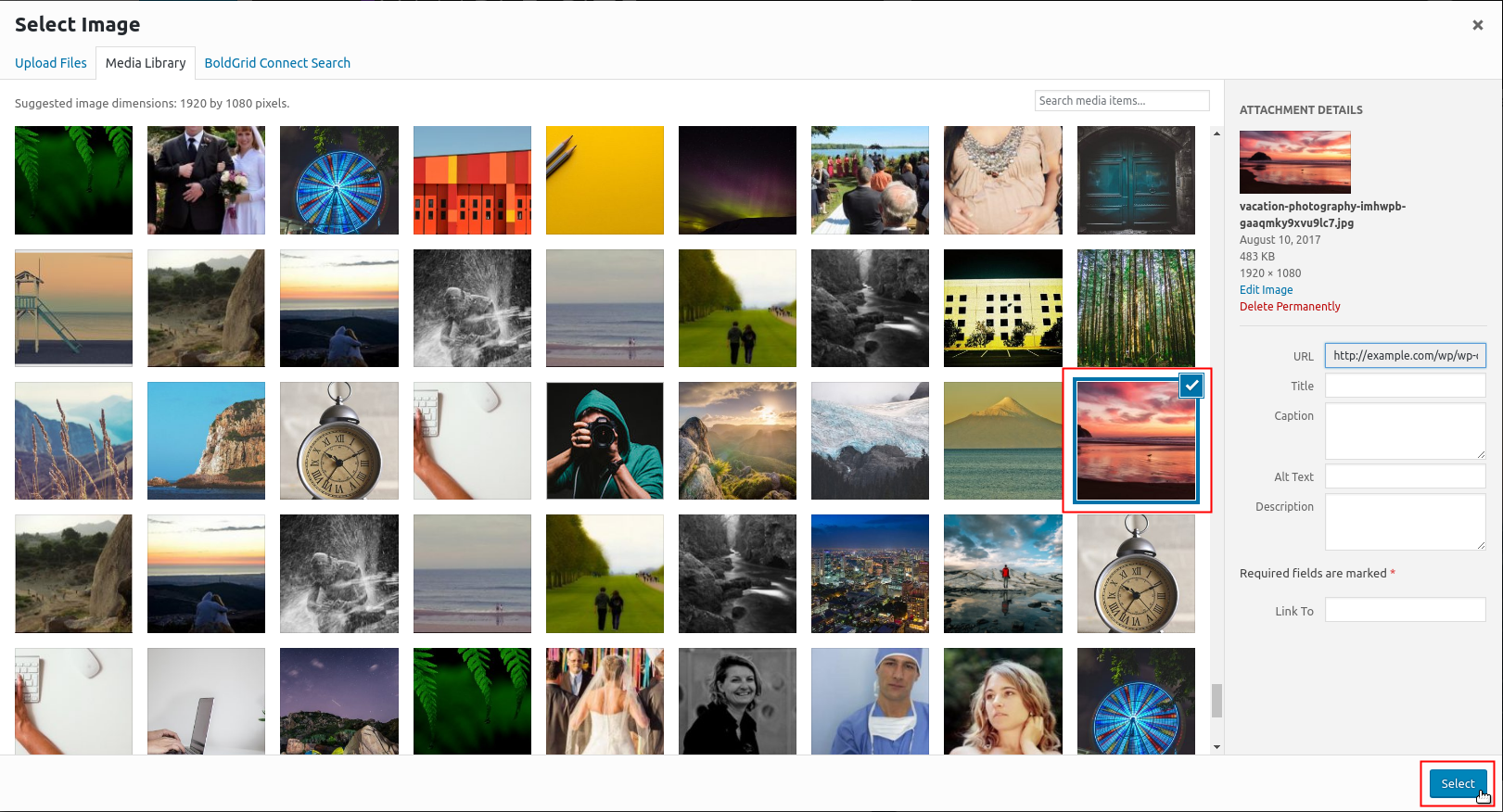
Choose an image from the Media Library and click the Select button.

Crop the image and click Crop Image. Otherwise, you can click Skip Cropping.
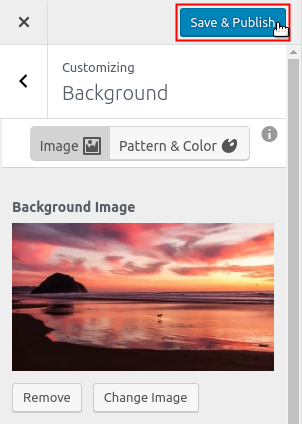
You will see the image you selected replaced as the background image. Click the Save & Publish button to save your changes.
Changing Your Background Pattern & Color
-
-
Click on Customize from the menu on the left.
-
Click on the Background option.
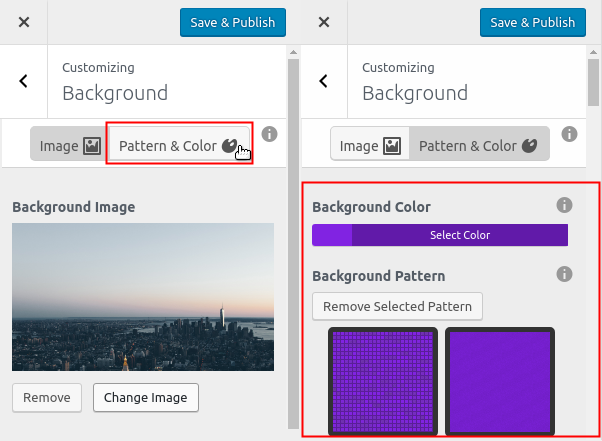
At the top you will see the option to select either a background Image or Pattern & Color. If the highlighted button is Image, click on Pattern & Color, to toggle the setting.
NOTE: If you installed a Staging Site, be sure to click the Active Theme or Staged Theme link for the site you want to modify. When making changes to the background, the link selected will be the version of the site that your changes will be applied to.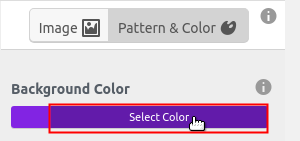
Click on Select Color.
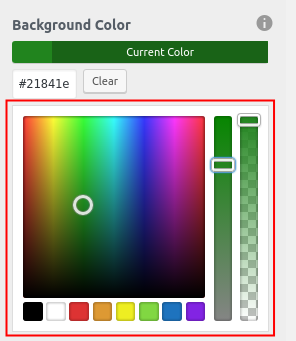
Select a color by using the color slider.
Click the Save & Publish button to save your changes.
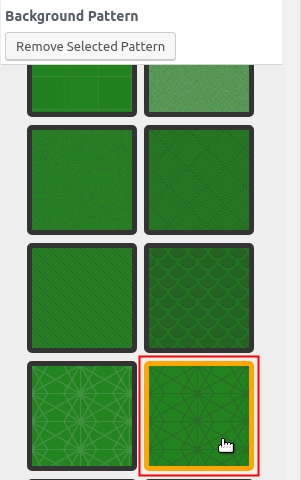
Scroll down to review the patterns available. Select a pattern by clicking on it.
-
Click the Save & Publish button to save your changes.
NOTE: If you make a change, always remember to check your background image, color, and pattern on all the pages of your site. This will help identify problems where the background could affect different elements in different parts of your website.
To find more information on using BoldGrid to make your perfect WordPress site, check out the BoldGrid Support Center.
Did you find this article helpful?
Tweet
Category
Using the Customizer in Boldgrid
Help Center Login
Using the Customizer in Boldgrid
Related Questions
Here are a few questions related to this article that our customers have asked:
Ooops! It looks like there are no questions about this page.
Would you like to ask a question about this page? If so, click the button below!

We value your feedback!
There is a step or detail missing from the instructions.
The information is incorrect or out-of-date.
It does not resolve the question/problem I have.
new! - Enter your name and email address above and we will post your feedback in the comments on this page!