How to turn on error reporting in Open Cart 1.5
When working within your Open Cart application, there can be times when things go wrong. By default, you will not receive error messages and may simply end up with a blank screen. Error message reporting is critical in troubleshooting. It is recommended to keep this option disabled normally and enable it when you need more information on a problem your site is having. Below are instructions on how to enable error reporting for your OpenCart application.
Enabling error reporting in OpenCart 1.5
- Log into your OpenCart administrative dashboard.
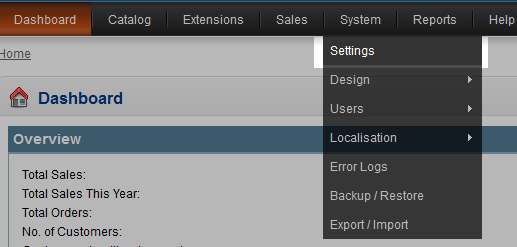 From the menu bar across the top of the screen, hover over System and click on the Settings option from the menu.
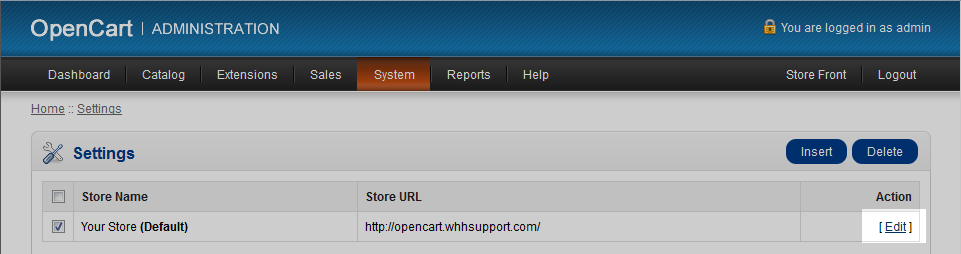 You are now on the Settings page for store selection. From here, select the store you are going to work with. In many cases, there will only be one. Click the Edit link to the far right of your selected store to access the main settings area.
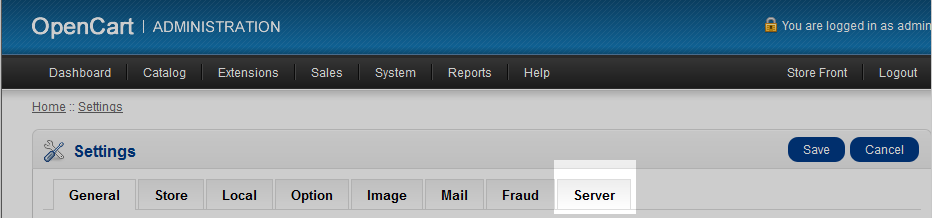 This leads you to the main settings page. From here you will see several tabs across the screen. Click on the Server tab to continue.
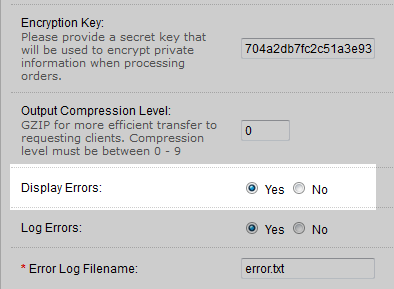 This brings you to the Server Settings tab page. From here we control various different options for your site. Scroll down until you see the Display Errors setting. Click the radio button labeled Yes to enable the error reporting.
 Scroll back up to the top of the page end click on the Save button found in the upper right corner. This saves the option and activates the error reporting. From here on, when you have an error on your site, you will receive an error message instead of a blank screen. You can use this information for troubleshooting or give it to your hosting provider so they can help you with any issues your site is having.
Did you find this article helpful?
Tweet
Help Center Login
Related Questions
Here are a few questions related to this article that our customers have asked:
Ooops! It looks like there are no questions about this page.
Would you like to ask a question about this page? If so, click the button below!

We value your feedback!
There is a step or detail missing from the instructions.
The information is incorrect or out-of-date.
It does not resolve the question/problem I have.
new! - Enter your name and email address above and we will post your feedback in the comments on this page!