Defining Default Supply Order Statuses in PrestaShop 1.5
There are only four supply order statuses when dealing with stock in PrestaShop 1.5. Your stock can only be labeled with one of the following when movement occurs between your warehouse(s) or supplier(s): increase, decrease, customer order, or supply order. The following article explains how to set the option for the default labels of supply order status in Prestashop 1.5.
Determining the Default Values of Supply Order Statuses in PrestaShop 1.5
- Log in to the Administrator Dashboard as an Administrator
- Hover over the right end of the menu bar where it is labeled STOCK and then click on the last item on the drop-down menu labeled CONFIGURATION. You will see the following screen or something similar:
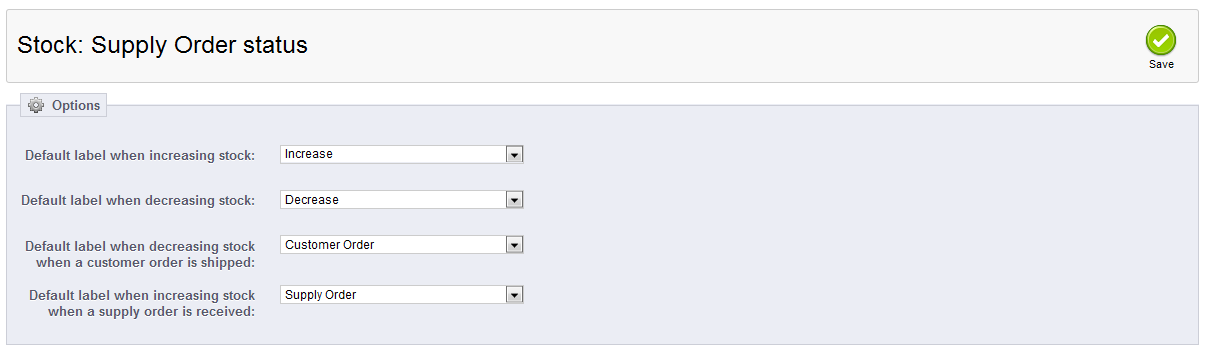
Note that clicking on the drop-down menus for any of the following items will give you the following options:
INCREASE - increase in stock inventory
DECREASE - decrease of stock inventory
CUSTOMER ORDER - default label used when decreasing stock due to a customer order
REGULATION FOLLOWING AN INVENTORY OF STOCK - can be used in ANY of the conditions listed above (increase, decreases or customer order) - Select the default label you wish to change, and the click on the drop-down arrow to select the item from one of the default values.
- Select the SAVE button to save your entries.
The default values for the Stock: Supply Order status are easily set with the drop-down menus in the interface. Make sure to properly set these values in order account for proper stock movement types in your supply order statuses. See Managing Supply Order Statuses Labels in PrestaShop 1.5 for further information.
Did you find this article helpful?
Tweet
Help Center Login
Configuring Supply Orders in PrestaShop 1.5
Related Questions
Here are a few questions related to this article that our customers have asked:
Ooops! It looks like there are no questions about this page.
Would you like to ask a question about this page? If so, click the button below!

We value your feedback!
There is a step or detail missing from the instructions.
The information is incorrect or out-of-date.
It does not resolve the question/problem I have.
new! - Enter your name and email address above and we will post your feedback in the comments on this page!