How to edit order statuses in OpenCart 1.5
Order Statuses are used to indicate the progress of a sale to both the customer in their Order History and an administrator viewing order status in the back office for OpenCart. The following tutorial will show how to create or edit order statuses for OpenCart 1.5.
How to add or modify order statuses in OpenCart 1.5
- Login to the Administration Dashboard as an Administrator
- Hover over SYSTEM in the menu bar, then when the drop-down menu is shown, click on LOCALISATION. Another drop-down menu will appear when you hover over LOCALISATION. Click on ORDER STATUSES in the drop-down menu that appears and you will see the following screen:
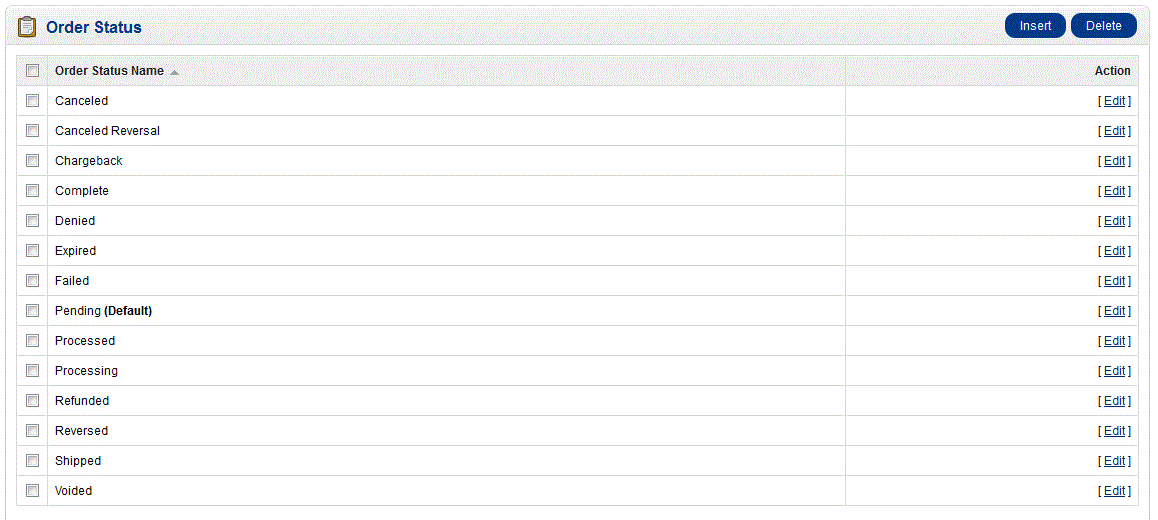
- Click on a status to select it, then select EDIT in order to modify the status. Remember that statuses are used to indicate the status of a sale to your customer. If you require a status type that is not in the list, then select INSERT in order to create a new status. Here is the screen you will see when editing an Order Status:
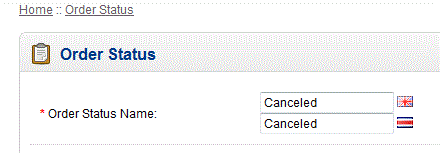
As per the screenshot above, note that if you have multiple languages installed for your store, then you will see a blank for the status to be set in each language. - Once you have completed your entry for the order status, select SAVE in order to save your status text.
Statuses are important to your customers because it provides them with information on the state of their order(s). It will be visible to the customer in their Order History screens as per below: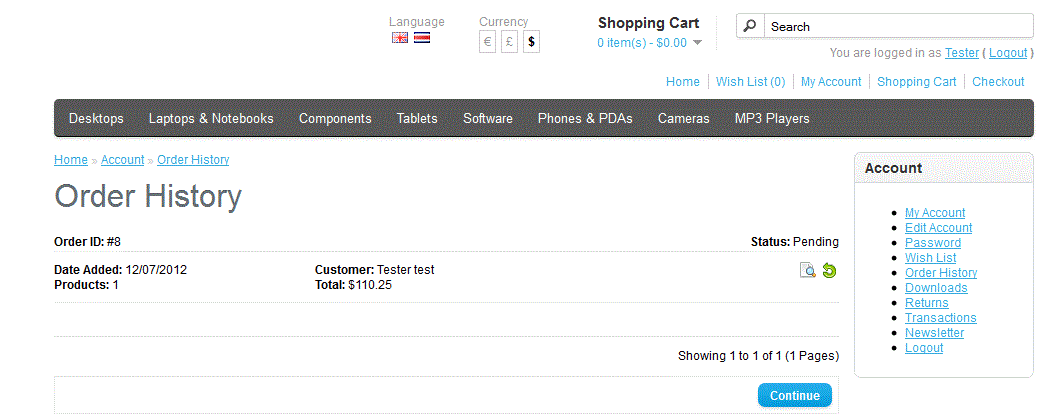
The order history above, shows the status as PENDING. Additionally, anyone who has access to the Administration Dashboard will be able to see a list of existing orders (depending on your settings). Here's an example of the dashboard or back office view: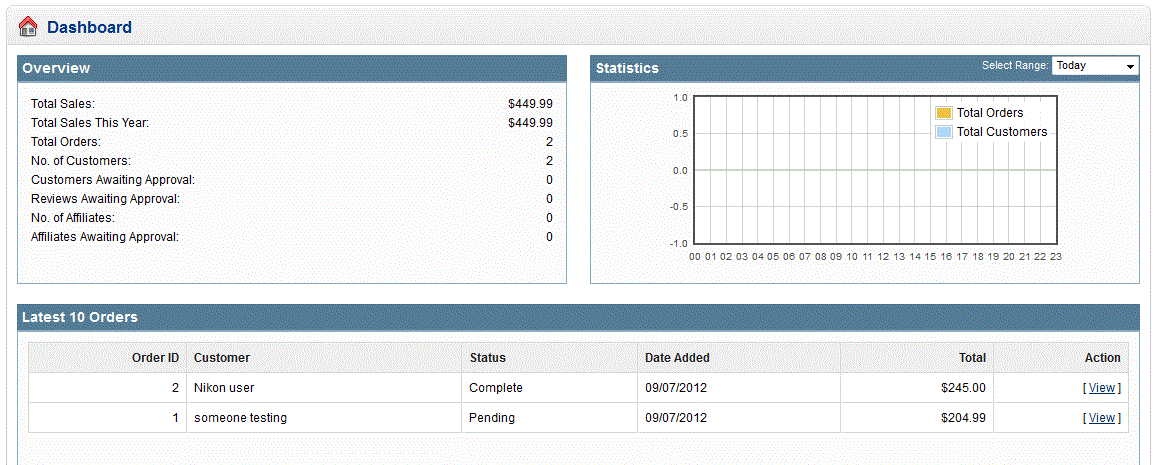
In this case, the latest 10 orders are displayed and you can see the status in the table.
Did you find this article helpful?
Tweet
Category
Processing Orders in OpenCart
Help Center Login
Processing Orders in OpenCart
Related Questions
Here are a few questions related to this article that our customers have asked:
Ooops! It looks like there are no questions about this page.
Would you like to ask a question about this page? If so, click the button below!

We value your feedback!
There is a step or detail missing from the instructions.
The information is incorrect or out-of-date.
It does not resolve the question/problem I have.
new! - Enter your name and email address above and we will post your feedback in the comments on this page!